Create a photo collage
Here you can create custom collages exactly the way you want them. With the designer, it\'s incredibly easy. Get started right away and choose from a wide range of templates. And if you want more, you can create a design that is entirely your own.How to Create a Photo Collage
Choose from a wide variety of templates, including grids, hearts, rows, and text.
Choose portrait or landscape orientation, adjust the number of tiles, and set the style just the way you like.
Upload your photos directly from your computer or phone.
Arrange and move your photos, edit text, choose backgrounds, and apply photo effects.
Choose your product and print size, then add your collage to the cart.
Complete your order and we'll take care of the rest! Get ready to enjoy your personalized photo collage.
Want more? With »Free layout« you can build a design entirely your own if you like: move, resize and rotate photos and texts freely.
Still have photos on your smartphone? Prefer to continue on your PC?
Want to upload more photos from your phone, or would you rather continue designing your collage on a computer or tablet? No problem: under »Switch device« you get links and QR codes for uploading more photos from your phone or for continuing editing and ordering on a larger computer screen.
Premium materials and a wide range of sizes
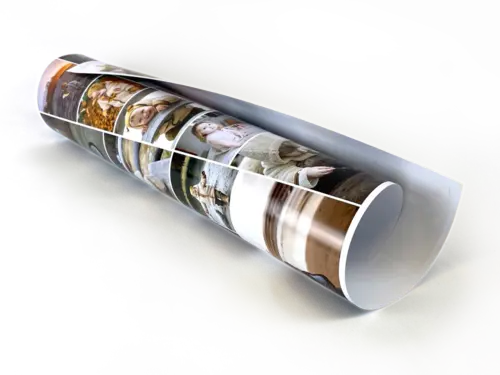
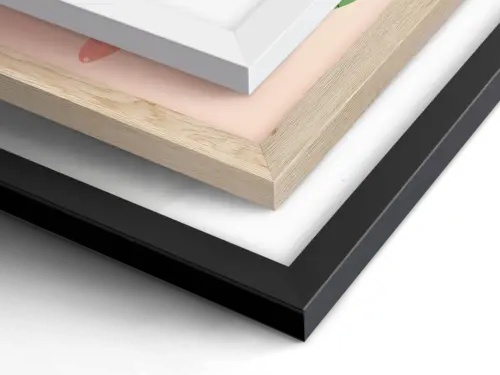
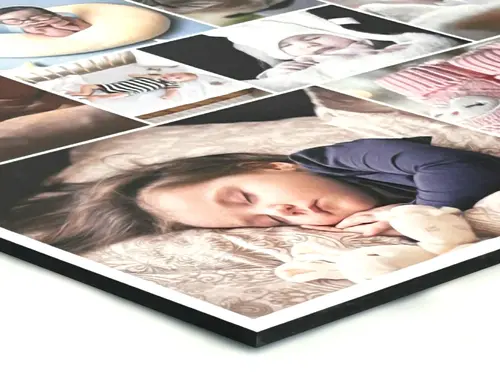
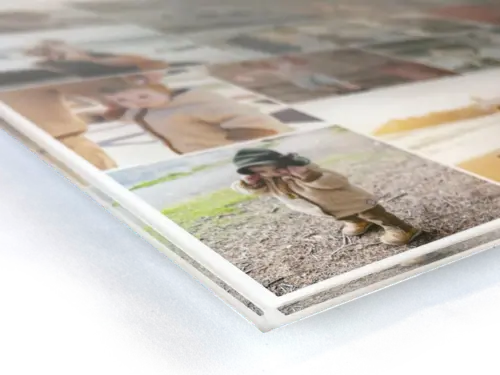
In collaboration with a local photo service provider, we print your collage on a variety of materials such as canvas, poster, aluminum Dibond, or acrylic glass. We make sure the finished product meets your expectations and the highest quality standards.


Delivery & Payment
No empty promises: the preview shows the actual delivery times of the last 30 days – when your order usually arrives and when it will be there at the latest.

- No customer account needed
- Production starts right after payment
- Shipping fully insured
Pay securely with:






Questions and help for creating photo collages
Please click on the questions to expand them.
Template and your own design
How can I choose a template for my photo collage?
Click on »Templates« and choose one of our many preconfigured designs. Whether you want a simple grid, a wild arrangement, a heart shape, text, or numbers, anything is possible.
Add custom text to your photo collage and easily choose the format and number of images.
Can I also create my own design, without a template?
Yes. Templates are the quickest way, but you do not have to use one: choose »Free layout« from the templates and you start with a blank page or with your uploaded photos, which the designer arranges for you to begin with.
You can also start with a template and later turn it into your own design with the »Free layout« button above the collage. After that, every photo and every text can be moved, resized and rotated individually. If you choose a template again later, it replaces your own design.
You will find ideas and examples to recreate on our page Design your own photo collage.
Can I add my own text wherever I want?
Every template has fixed places for text, for example at the top or bottom. If you want your text somewhere else, click »Free layout« above the collage and then »Add« → »Text«. Move the text to where you want it, drag it larger or smaller and rotate it if you like.
Can I make one photo larger than the others?
Yes. Click »Free layout« above the collage, select the photo and drag one of its corners to make it larger. Simply move the other photos aside, or let »Arrange« distribute them again.
Prefer not to move things around? The templates »Center« and »Grid Variation« highlight individual photos in a larger size on their own.
Which effects (backgrounds, colors) can I apply, and how?
In the »Design« section, you will find many options to customize your photo collage. Here, for example, you can choose backgrounds from a large selection or set a color of your choice.
With the »Opacity« slider, you can determine how transparent the photos on the collage should be. This allows you to create interesting overlay effects.
Use the »Border« option to add a frame to the photos. Here you can also define the thickness and color of the frame.
You can also apply individual effects to each photo in your collage, such as black and white, sepia, or other filters.
Uploading and arranging photos
How do my photos get into the photo collage?
You can upload images for your photo collage directly in the designer from your computer or phone using the »Upload« button. When uploading your photos, you can also select multiple images at once.
By clicking on an empty image within the photo collage, you can also upload an image, which will then be placed there immediately.
Using »Delete all images«, you can easily remove the uploaded images again.
Which image formats (JPEG, PNG, JPG, GIF, HEIC) can I use for my photo collages?
Our web app supports a wide range of image formats, so you can design your photo collages with maximum flexibility and creativity. You can upload photos in JPEG, PNG, JPG, GIF, and HEIC formats.
For images in PNG format, transparency is preserved. This allows you to create effects and overlays with transparent backgrounds that make your collage even more unique.
We also provide full support for HEIC files – a format used primarily by newer Apple devices. This ensures that even high-resolution photos from iPhones and iPads can be integrated into your projects without any issues, without requiring prior conversion.
How can I automatically assign images to my photo collage?
By clicking on »Place → place randomly«, you can distribute your uploaded images randomly across the photo collage. This will fill all placeholders in the photo collage.
Your photos on the collage can be arranged alphabetically by (file) name in ascending or descending order by clicking »Place → sort by name«.
If you click »Place → sort by capture date« in the designer, your photos on the collage will be arranged by capture date (from the camera). This lets you organize images chronologically, for example.
By clicking on »Clear«, you can remove all images that have already been placed from the photo collage, for example to assign them manually again.
Can the photos also be placed manually?
Using »click and drag« with the mouse, you can place the photos from the upload box into the desired position in your photo collage.
Within the photo collage, you can rearrange the images by »clicking and dragging«, for example moving them from bottom to top.
Each photo in the upload box has a small circle with a number. This shows how many times the image has already been used in the photo collage. If the circle is red and shows zero, the image has not yet been used in the collage.
How can I adjust my photos?
Is the image upside down? By clicking on the uploaded image, you can easily rotate it into the correct position using the »Rotate« function.
Does an individual uploaded image not fit into the photo collage? Simply remove the image by clicking the »Delete« button in the designer's upload box.
You can define the image crop by clicking and carefully dragging within
an image in your photo collage.
The image crop can also be enlarged:
To do this, click on the photo. In the popup, you can then use the plus or minus magnifier
to zoom in or out on the photo.
Saving, continuing, sharing
Can I create multiple collages and switch between them?
Yes. Above the designer on the right you’ll find the line »Current project«. Click it to see your collages: you can create several collages as separate projects and switch between them at any time. Each collage has its own settings; your uploaded photos are available in every project.
Using »New project« you start a fresh, empty collage; your existing collages remain fully intact. You can also give your projects their own names to tell them apart easily.
Print size and ordering
Where can I see how large the individual photos will be?
In the last step, »Order«, you choose the material and print size of your photo collage. Right below, the »Photo sizes« note shows you roughly how large your photos will be in the print – from the smallest to the largest photo in the collage. If you choose a different print size, the values are updated immediately.
I want to print my collage myself as a download. How do I set the format?
In the last step, »Order«, choose Download as the material. Under »Print size«, click »Enter size« to pick a standard format – e.g. 2:3 for 20×30 cm (8×12″) or 5:7 for 13×18 cm (5×7″) and A4 – or enter the width and height yourself.
The collage is then adapted to the aspect ratio of your print size and the photos are rearranged. You can see the result right away in the preview. The portrait or landscape orientation of your collage is kept.
The print file has more than 50 megapixels, so it is sharp enough for any print application.